How to Make an Online Wedding Invitation
A step-by-step guide to making an online wedding invitation: choose a design, write the wording, add a reply link and send it by text or email.
An online wedding invitation is an invitation your guests receive on a screen instead of in an envelope. Most of the time that means an image sent by text, email or chat, sometimes with a link to a page that holds the details and collects replies. People also call these e-invites or evites. This guide walks through making one from the first decision to the moment you press send, using plain steps that work with any tool and pointing out where our own tools fit.
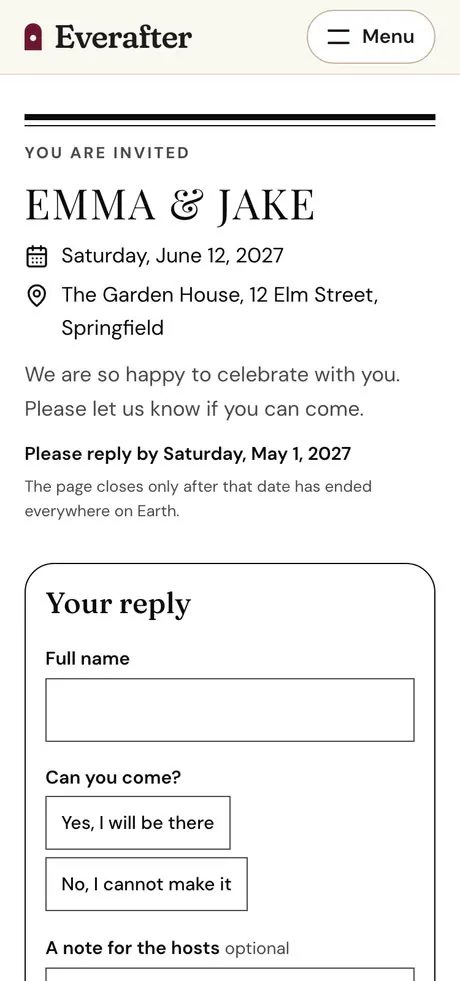
Step 1: Decide what you will send
Online invitations come in three common forms. You can send a still card, which is an image guests open in a message. You can send a short video, which is a card that moves. Or you can send a link to a wedding website that carries the schedule, the travel details and a reply form.
You can also combine them. A card with a link on it is the most flexible choice, because the card is quick to read and the link holds everything that does not fit. Think about who is on your list too. Some relatives will prefer a paper card or a phone call, and there is nothing wrong with sending those alongside the online version.
Step 2: Gather the details
Before you open any design, write down what the invitation has to say. A short list saves a lot of editing later.
- The names of the couple and, if you want them, the hosts.
- The date and the time the ceremony starts.
- The name and address of the place, with the city.
- Anything guests need to plan around, such as a dress code or a second location for the reception.
- How guests should reply, and by what date.
If the reply is a link, have the link ready. Guests tend to ignore invitations that make them hunt for the answer.
Step 3: Choose a design
On a screen, the design has to be readable on a phone first. Choose a layout where the names and the date are large, the contrast between text and background is strong, and there is room around the words. Our wedding invitation templates gallery shows every layout with sample names, and you can filter by style, color and whether a design has a photo. When you open one, the wedding invitation maker loads it with that look already chosen.
A photo design works well when you have a strong picture of the two of you. A text-only design is calmer, and it also copes better with long names and long addresses.
Step 4: Write the wording
Keep each line short, and put the information in the order guests look for it: who, what, when, where. A simple pattern is a host line, a request line, the names, the date, the time, the place and a reply line. For example:
- Together with their families
- request the pleasure of your company at the wedding of
- Emma and Jake
- Saturday, June 12, 2027, at four o'clock
- The Garden House, Springfield
- Dinner and dancing to follow
- Kindly reply by May 1
These are invented names and placeholder wording, so replace every line with your own. If you are unsure how formal to be, read the wording aloud. If it sounds like you, keep it.
Step 5: Add a way to reply
An online invitation is at its most useful when replying takes one tap. You have two good options. You can put a link on the card, and the maker turns a link into a QR code that guests can scan from a printed card or another screen. Or you can create a reply page and use its link.
Our online wedding RSVP tool makes a reply page that guests open without an account, and it shows you who is coming. It needs a free account for the host and it does not send any messages for you, so you share the link yourself. If you want a code on its own, the QR code generator makes one from any link. If the details are long, the wedding website builder makes a page for the schedule, the travel notes and the reply form together.
Step 6: Check it, then export it
Before you send anything, check three things.
- Spelling. Read every name and the street address letter by letter. Names are the one mistake an invitation cannot hide.
- The date and the day. Check that the weekday matches the date in your calendar.
- The size. Choose the size that suits where it will be seen. The maker offers a 4 by 5 post, a square, a story, and a 5 by 7 print size. A post or square suits a message or an email, a story suits a story post, and the print size suits paper.
Download the image and open it on your own phone. If you have to zoom to read the date, go back and make the text larger or choose a simpler layout.
Step 7: Send it
Send the card the way your guests normally talk to you. A text or a chat message works for friends and close family. Email suits a longer list and gives you a place to add a few lines of your own. Whatever you use, say a few words with it, because a card with no message can look like spam.
Think about privacy before you post it anywhere public. An invitation carries the date and the address of the day, and some couples prefer to send it privately and leave public posts for the photos afterward.
Send to people in batches if you can, and keep track of who has answered. The guest list maker keeps your list in one place and tracks the replies. A gentle reminder a couple of weeks before the reply date is normal.
Mistakes worth avoiding
- Too many fonts and too many colors on one card.
- A reply method that needs an account or an app.
- Leaving the reply date off, which leaves guests guessing.
- Sending an image only, with no way to find the address again. Put the address in the message too, so it can be searched.
- Forgetting a paper option for guests who need one.
Where to go next
If your date is still far away, send a card first to hold it. The save the date templates gallery has designs for that, and the invitation can follow in the same style. To make the invitation move, see our guide to making a wedding video invitation, and if you want to build the card yourself from a blank page, read how to design your own wedding invitation.
Cards and RSVP pages in every style are in the invitation and card examples.