How to Make a Wedding Video Invitation
How to plan, make and send a short wedding video invitation: choose a style, write the text, pick photos, check it on a phone and share the file.
A wedding video invitation is a short clip that does the job of a card: it tells guests who is getting married, when and where, and what to do next. Because it moves, it can feel more personal than a still image, and it travels well in a chat or an email. This guide covers what to plan before you start, how to make the clip, and how to send it so it plays for everyone.
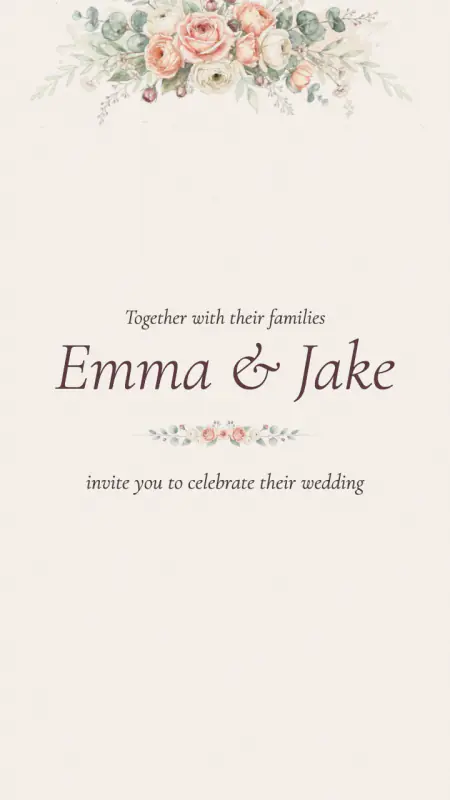
Decide what the video needs to do
A good invitation video is short. Guests will watch a few seconds and then decide whether to keep going, so the essentials should appear early: your names, the date and the place. Everything else, such as a dress code or a long schedule, belongs on a page the video points to.
Plan the clip as a handful of simple scenes.
- A title scene with your names and a line such as "invite you to celebrate their wedding".
- A few scenes with photos of the two of you, if you want them.
- A details scene with the date, the time and the place.
- An ending scene with the names and the date again.
Repeating the date at the end is useful, because people often remember the last thing they see.
Choose a style first
The look of the video comes from its style: the typefaces, the colors, the artwork and the way scenes and photos arrive on screen. A formal day may suit a quieter style and a casual one a bolder style; trust your eye over the labels. Our wedding invitation video templates gallery shows the title scene of every style with sample names, so you can compare them side by side. When you open one, the wedding invitation video maker starts with that style chosen.
If you already have a card design you love, pick the video style that matches it. A card and a video in the same style look like they belong to one suite, and you can browse matching cards in the wedding invitation templates.
Write the text
Video text has to be shorter than card text, because each scene stays on screen only briefly. Use the same fields you would use for a card: the names, the request line, the date, the time, the place and a reply line. Then read each one and ask whether a guest could take it in during a few seconds. If a line is long, cut it. A long venue name or a long address is the first thing to strain a layout, and the maker will tell you when something does not fit at its smallest size.
Do not rely on the video alone for anything guests may need to copy, such as a long address or a link. Say it in the message you send with the video too.
Choose your photos
You can add up to four photos to the invitation video. Choose pictures with the following in mind.
- Bright and simple. Photos that read quickly on a small screen work better than busy ones.
- Faces away from the edge. Photos can be cropped and may zoom or drift as they appear, so keep faces comfortably inside the picture.
- A mix. A close portrait, a wider shot and a candid one give the clip some rhythm.
Photos are processed on your own device, and the video is made in your browser. Nothing is uploaded to make it. If you do not have a good photo yet, you can still make a video from text alone, or use a photo from an engagement shoot later and rebuild it.
Make the video
In the maker, the steps are short. Pick a style, type your wording, add your photos, choose a size and press the export button. For most guests the vertical size is the safest choice, because most people will open it on a phone. A wide size suits a screen at the venue or a laptop. The preview plays before you export, so watch it through once with your phone in hand and read every word.
The video has no sound. That is a feature as much as a limitation: there is no music to license and the video works in a silent room. If you want a soundtrack, add one in a video app, or choose one in the app where you post, and check that app's rules about music first.
Check it like a guest
Before you share it, play the exported file on at least one phone that is not yours if you can. Look for these things.
- Can you read the date without pausing?
- Do the names look right?
- Does the file open in the app you will use to send it?
Some messaging apps shrink videos to save space, which can soften small text. Keeping the text large helps with that. If a guest might not be able to play the video, send the date and the place in the message as well, so nobody is left without the basics.
Send it with a clear next step
An invitation video should end with something to do. Put the date in the message, add a link to a reply page, and say when you need an answer. The online wedding RSVP tool makes a reply page that guests open without an account. If there is a lot to explain, the wedding website builder makes a page for the schedule and the travel notes, and you can paste its link under the video.
If you want something to go out earlier, the save the date video maker makes a shorter clip for the first announcement. For a longer clip that tells your story with many photos, the wedding slideshow maker adds a title card and an end card to a series of pictures.
A short checklist
- Names and date are on screen early and again at the end.
- Each line of text is short enough to read at a glance.
- The photos are bright and the faces sit away from the edges.
- You watched the preview once through, with the sound off, on a phone.
- The message that carries the video repeats the date and the place, and says how to reply.
For the still version, the guide to making an online wedding invitation covers the card, the reply link and the sending order step by step.
Real clips you can play are in the wedding video examples.