How to Design Your Own Wedding Invitation
Design your own wedding invitation: set priorities, choose type and colors, write the wording, check contrast and prepare it for print or screen.
Designing your own invitation is easier than it sounds, because a good invitation is mostly a matter of order, spacing and restraint. You do not need drawing skills. You need to decide what matters most, choose a few things that go together, and leave room around the words. This guide goes through the choices in the order you will make them, and shows where a tool can do the fiddly parts.
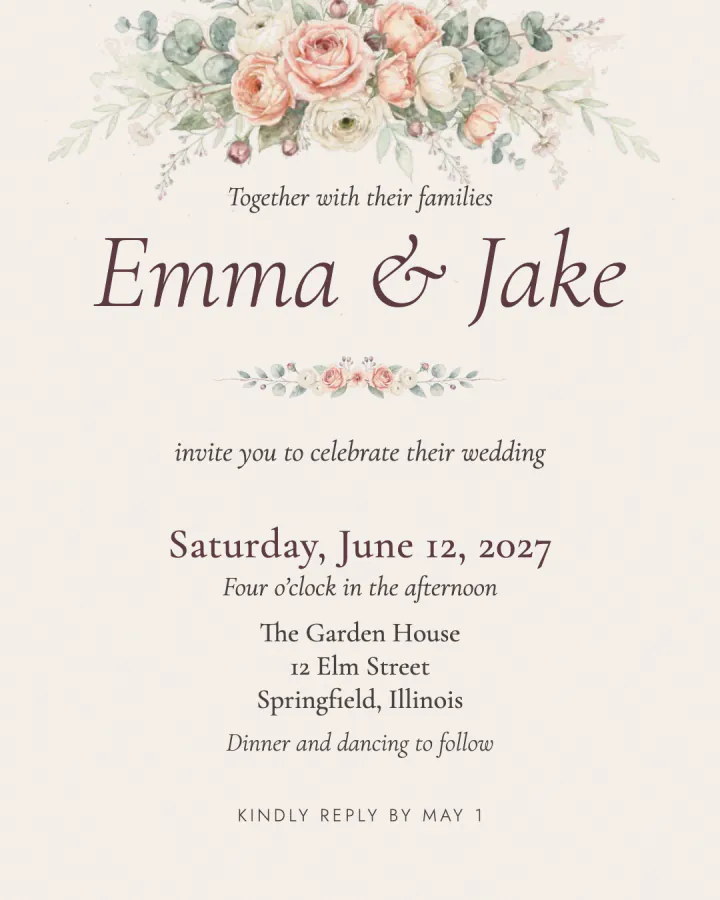
Start with a feeling, not a font
Before you pick anything, describe the day in three words. Garden, relaxed and warm. City, formal and dark. Beach, bright and simple. Those words are the brief. Every later choice, from the typeface to the color of the paper, either supports them or fights them, and that makes the choices much quicker.
If you are stuck, look at the venue, the season and what you will wear, and borrow from them. Our wedding theme quiz turns a few answers about your venue, colors and mood into a theme, and the color palette generator lets you browse palettes by season and mood, or start from one color or a photo.
Decide what comes first
An invitation has a hierarchy: the things people must see, the things they will want, and the things only some of them need. A useful order is the following.
- The names. These are the largest thing on the card.
- The date and the time. The second most important, and often set in a second size.
- The place. The venue name and the city.
- Everything else. The host line, the request line, the reception note and the reply line, smaller and quieter.
If everything is the same size, nothing stands out. Decide what is first and make it clearly bigger than the rest.
Choose type that you can read
Two typefaces are enough. Pair one with character, such as a script or a high-contrast serif for the names, with one plain face for the details. Avoid using three or more, because they start to compete.
Check the details at the size they will be seen. A line that looks fine on a laptop can be too small on a phone. As a rule, if you have to lean in to read a line, make it larger or shorter. Long words in capital letters need extra space between the letters, and very thin type can disappear on a photo or a textured background.
Pick colors and check the contrast
Choose one background, one color for the names and one accent. Keep body text close to black or white against the background, because pale gray text on a pale paper is the most common reason an invitation is hard to read. The common guideline for readable text is a contrast ratio of at least 4.5 to 1 between the text and its background, and our card makers check the body text against that and show the ratio under the preview.
Dark backgrounds look striking on a screen, but they can use a lot of ink on paper and may look different in print. If you plan to print, print one at home first and look at it in daylight.
Write the wording
Wording follows an order guests recognize. A formal invitation usually begins with a host line, then a request line, then the names, the date, the time, the place and a reply line. A relaxed one can drop the host line and the request line and say something like "Join us to celebrate" before the names.
Keep sentences short and use real names. Write the date out in full, with the weekday, so nobody has to check a calendar. Put the full address in the invitation or on a page it links to. And read the whole thing aloud, because a line that sounds stiff when you say it will look stiff on the card.
Use a layout instead of starting blank
A blank page gives you total freedom and very little help. A layout takes care of spacing, alignment and sizes, so you can concentrate on the words and the colors. In our wedding invitation maker you choose a layout, type your details and the text is fitted into the space automatically. If a line is too long to fit at its smallest size, the maker marks the field instead of letting it spill over.
To see what is possible, browse the wedding invitation templates. Every design is shown with sample names, and you can filter by style, color and whether it has a photo. If you want your initials on the card, the monogram maker designs a monogram you can download and place.
Add a photo with care
A photo makes an invitation personal, but it competes with the text. Choose a picture with space around the faces, such as sky above you or an uncluttered background, so the words have somewhere to sit. Pictures with faces at the very edge tend to get cropped awkwardly. If your photo is busy, a text-only layout is often the better choice. Photos you add in the maker are cropped on your device and are not uploaded.
Choose the size and the format
Decide where the invitation will be seen. For a message or an email, a 4 by 5 or square image suits a screen. For a story post, use the tall format, and keep important text away from the top and bottom, where the app draws its own bars. For paper, a 5 by 7 inch card is a common size, and the maker can export a print-size PNG for it. The tool does not print or mail cards, so take the file to a print shop or print it at home.
Proof it
Before you send or print anything, ask two other people to check it. Fresh eyes find mistakes you have read past ten times. Ask them to read the names, the date, the day of the week and the address, and to tell you what the card is asking them to do. If they hesitate, the hierarchy needs another pass.
A few common mistakes
- Using more than two typefaces.
- Making every line the same size.
- Choosing a color combination that looks beautiful and reads poorly.
- Squeezing a long address into a small space instead of linking to a page.
- Forgetting the reply date and the reply method.
When the card is done, the guide to making an online wedding invitation covers adding a reply link and sending it, and the save the date templates gallery has matching designs for an earlier card.
To see more styles before you start, browse the invitation and card examples.