How to Choose a Photo for AI Wedding Portraits
Choose a clear couple photo for an AI wedding portrait, understand consent and credits, and check the result before sharing.
An AI wedding portrait starts with a photograph, so the picture you choose matters as much as the scene. This guide helps you select one, understand what an AI tool can change, and check the finished image before you put it on a card or share it.
VowAndMake's portrait maker works from one existing photo showing two consenting adults. It does not combine two separate selfies. You choose a scene and a shape; the AI makes a new image and may change details of your appearance. If you need a record of a real wedding day, keep the original photographs or work with a photographer.
Start with a picture both people can use
Choose a photo that you have the right to upload. Both people pictured must be adults and agree to this use. If someone else took the photo, check that you have permission to use it in an AI service. Avoid sending a group picture and assuming the tool will identify which two people you meant.
A useful starting point is an ordinary photo of you together, taken in good light. You do not need to be dressed for a wedding. What matters is that both faces are visible and the image is clear enough to recognize you.
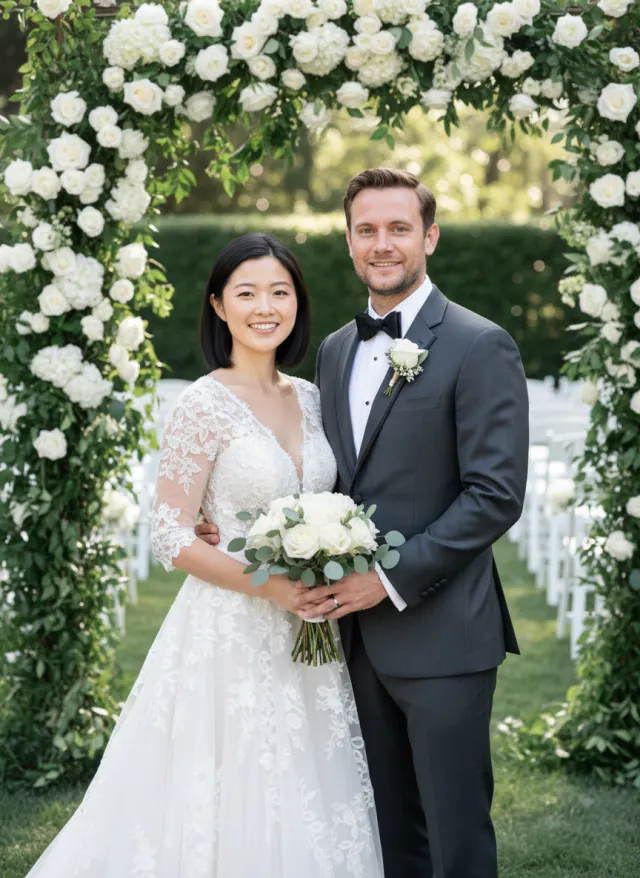
Check faces, glasses and the edges of the frame
Look at the image at the size you will upload it, not only at a small thumbnail. Can you see both faces without one being hidden behind hair, a hand or sunglasses? Is either person cut off at the edge? A sharp, well-lit picture gives you more useful detail to compare later than a dark or heavily filtered one.
Glasses, facial hair and hair color are worth checking before and after generation. The tool asks the model to preserve them, but it may not preserve them. If a detail is important to you, keep the original open alongside the result and compare it at full size.
A casual photo can still be useful. A picture of you walking together may have a natural pose, while a front-facing photo makes faces easier to inspect. Choose according to what matters for this portrait; neither is a promise of a particular result.
Check the file before uploading
For the current VowAndMake portrait maker, use a JPEG, PNG or WebP file of up to 12 MB, with the longer side at least 768 pixels. HEIC is not accepted by this form; export a copy in a supported format first. Keep the original file, particularly if you make a smaller copy for upload.
The form asks you to confirm consent and your right to use the photograph. The photo stays on your device until you request a portrait; when you submit it, it is sent to an AI provider for processing. Read the privacy information before uploading if you have questions about data handling.
Choose a scene for the way you will use the portrait
The tool offers five fixed scenes: a garden ceremony, a golden-hour field, a classic studio, an outdoor engagement scene and an anniversary evening. The first three request wedding clothing; the other two use occasion-appropriate everyday or evening clothes. You cannot type a custom location, choose a particular gown or request a cultural outfit in this tool.
For a card with lots of text, a simpler background may leave the design less busy. For a digital invitation, consider where you will crop the portrait before placing it into the card. Both 3:4 and 4:5 are available; the output may not include every part of the input photo.
Open the AI wedding photo generator to see the available scenes and your credit balance before making a request. Eligible new accounts receive six credits once; one portrait uses two credits. Review the current pricing and credit terms before buying more. Signing in is required to generate a portrait.
Compare the result before sharing it
Treat the output as a generated illustration based on your photo, not as a record of an event. Check each face, glasses, hair, hands and clothing. Look for an extra person or object that does not belong. If a result is not suitable, use the tool's problem-report option; creating another portrait uses credits again.
The result link is temporary, so download the JPEG while it is available. Open the saved file on the device where you plan to use it. If you share the image, say that it is AI-generated so guests do not mistake the scene for a photograph from the day.
Put the portrait on an invitation
After downloading, you can add the image to a photo layout in the wedding invitation maker or make a save the date. Check the crop, the spelling of both names, the date and the venue in the finished PNG. The card maker does not send the invitation or collect replies. If you use an RSVP link, provide a form or page you already manage and test its QR code from another device.
Frequently asked questions
Can I upload one selfie of each person?
Not in this portrait maker. It needs one existing picture containing both adults. A different service may accept separate photographs, so check its input and privacy rules before choosing it.
Will the AI keep our faces exactly the same?
It is instructed to preserve identity, but faces, hair, glasses and hands can change. Compare the result with your input and do not rely on an exact match.
Can I select a specific dress or wedding venue?
No. This tool offers fixed scenes and chooses the clothing. Use it for a broad visual idea rather than a precise representation of an outfit, location or cultural tradition.
Is the first portrait free?
Eligible new accounts receive six credits once, and this portrait uses two credits. Availability and prices can change, so check the current pricing page and your account balance before generating.
A practical next step
Pick a clear, consented photo of both of you, decide how you want to use the finished image, and compare the result before adding it to a card. The AI wedding photo generator shows the five scenes and the input requirements before you submit.
These product notes were prepared with AI assistance and checked against the published tool on 28 October 2026. The example image shows fictional AI-generated people; results vary. The About page and contact page explain how to reach the team if a control or product term has changed.